
X/Twitter 帖子的两级情感分析 (Two-level Sentiment — X/Twitter Posts)
X/Twitter 帖子的两级情感分析使用说明
可以理解为「看一条帖子的正文,先判整体情感,再勾写作风格或语义特点」。第一层与第二层拆开,可减少一次界面上的选项数量,并符合「先主类、后附加属性」的质检习惯。本配置源自社区模版库。
标注核心作用
- 顶部 Style 微调
.htx-text,避免在旧版 playground 中与卡片样式冲突; - 卡片用嵌套
View+Text拼出头像、昵称、时间与互动数据,仅正文来自$text,其余可为演示固定值; Choices name="sentiment"使用choice="single",绑定到承载正文的Text name="tweet";Choices name="other-props"使用choice="multiple",并通过visibleWhen="choice-selected"、whenTagName="sentiment"在选中主情感后再显示第二组选项。
基础操作步骤
- 阅读主情感三项的,在 积极 / 中性 / 消极 中择一;
- 出现「帖子其他属性」后,按需勾选一项或多项(描述性、情绪化等),并参考各
hint; - 若项目要求必选第二组,请在规范中写明;当前配置未对第二组强制
required(以实际 XML 为准); - 自检后提交。
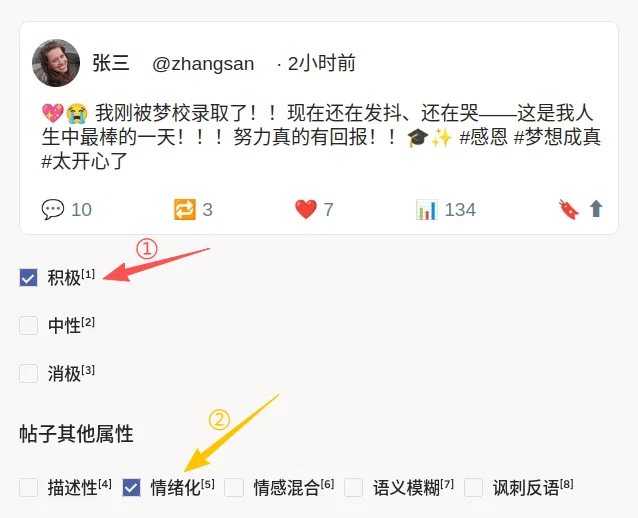
说明:截图中①示意第一层主情感选择;②示意第二层「帖子其他属性」多选(界面标号以实际为准)。
注意事项
data.text为帖子正文;头像 URL、互动数字等为模版内写死的展示字段,批量任务时若需每帖不同,应改为变量并在 JSON 中传入(需同步改配置);showInLine若在你使用的平台中无效,可尝试改为showInline(以官方文档拼写为准);toName="tweet"须与正文Text name="tweet"一致,否则选项无法正确关联;- 出处见下方代码注释;升级 Label Studio 大版本后请回归测试
visibleWhen行为。
模板预览

模板配置
完整代码块
<View>
  <Style>
    .htx-text{padding:0; background: transparent; border:none;}
  </Style>
  <View
    style="
      border: 1px solid #e1e8ed;
      border-radius: 8px;
      padding: 10px;
      max-width: 500px;
      background-color: #fff;
      font-family: Arial, sans-serif;
    "
  >
    <View
      style="
        display: flex;
        align-items: center;
        gap: 10px;
      "
    >
      <View
        style="
          width: 40px;
          height: 40px;
          border-radius: 50%;
          background-color: #ccc;
          background-image: url('https://randomuser.me/api/portraits/women/45.jpg');
          background-size: cover;
        "
      ></View>
      <Header name="username" value="张三" />
      <Text name="handle" value="@zhangsan" style="color:gray;" />
      <Text name="timestamp" value="· 2小时前" style="color:gray;" />
    </View>
    <View style="margin-top: 8px;">
      <Text name="tweet" value="$text" />
    </View>
    <View
      style="
        display: flex;
        justify-content: space-between;
        font-size: 12px;
        color: #657786;
        margin-top: 20px;
      "
    >
      <Text name="comments" value="💬 10" />
      <Text name="retweets" value="🔁 3" />
      <Text name="likes" value="❤️ 7" />
      <Text name="views" value="📊 134" />
      <Text name="other" value="🔖 ⬆" />
    </View>
  </View>

  <Choices name="sentiment" toName="tweet" choice="single">
    <Choice value="积极" hint="如果内容表达正向、积极态度,请选择此项" />
    <Choice value="中性" hint="如果整体不表达明显情绪倾向,请选择此项" />
    <Choice value="消极" hint="如果内容表达负向、不满或不愉快情绪,请选择此项" />
  </Choices>

  <Choices name="other-props" toName="tweet"
           choice="multiple" showInLine="true"
           visibleWhen="choice-selected"
           whenTagName="sentiment">
    <View style="width:100%">
      <Header value="帖子其他属性" />
    </View>
    <Choice value="描述性" />
    <Choice value="情绪化" hint="如果表达了中等到强烈的情绪,请选择此项" />
    <Choice value="情感混合" hint="如果同时出现多种相互冲突的情绪,请选择此项"/>
    <Choice value="语义模糊" hint="如果内容无关、难以判断或语义不清,请选择此项"/>
    <Choice value="讽刺反语" hint="如果内容包含讽刺、反讽或挖苦表达,请选择此项"/>
  </Choices>
</View>
配置代码说明
以上代码为「仿推文卡片 + 主情感单选 + 条件显示的多选属性」。
1、卡片:外层 View 控制边框与最大宽度;头像为 CSS background-image;Text name="tweet" value="$text" 为唯一数据驱动正文。
2、第一层:Choices name="sentiment" toName="tweet" 将情感标签关联到 tweet 文本对象;各 Choice 可配 hint 作为悬浮说明。
3、第二层:name="other-props",visibleWhen="choice-selected" 与 whenTagName="sentiment" 表示在 sentiment 有选项被选中后再显示本组;choice="multiple" 为多选。
示例数据(简要)
{
  "data": {
    "text": "💖😭 我刚被梦校录取了!!现在还在发抖、还在哭——这是我人生中最棒的一天!!!努力真的有回报!!🎓✨ #感恩 #梦想成真 #太开心了"
  }
}
说明
- 代码可直接复制到标注配置文件中使用;
- 注释中的 awesome-label-studio-config 路径仅供参考;配置内「plaground」为上游拼写,若本地修改样式可一并校正。